
Create data products #
In Starburst Galaxy data products let you supply more detailed business context to users of your datasets. You can create a data product, directly from the navigation menu, from a schema, or from query results.
To create a data product, your active role set must include a role with the Manage Security account privilege.
Create a data product from the menu #
From the navigation menu, go to Data > Data products.
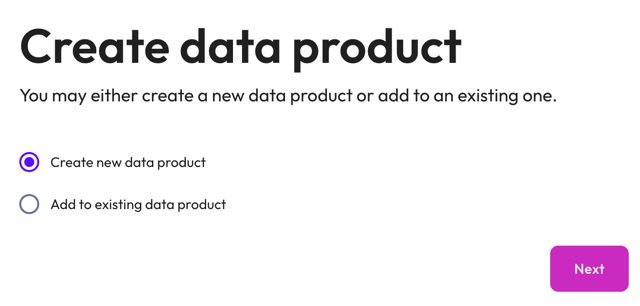
In the Create data product dialog, select Create new data product or select Add to existing data product to update an existing data product. Click Next.
The following sections walk you through the configuration process:
- Step 1: Select a data product location
- Step 2: Add data product details
- Step 3: Define datasets
Select a data product location #
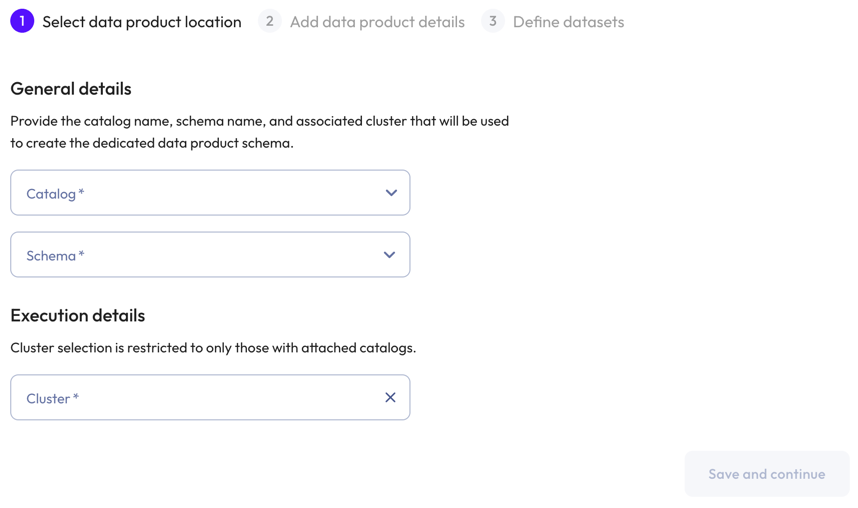
In the Select data product location dialog, provide the following details:
- In the General details section, specify a catalog and schema.
- In the Execution details section, specify a cluster.
-
Click Save and continue.
Add data product details #
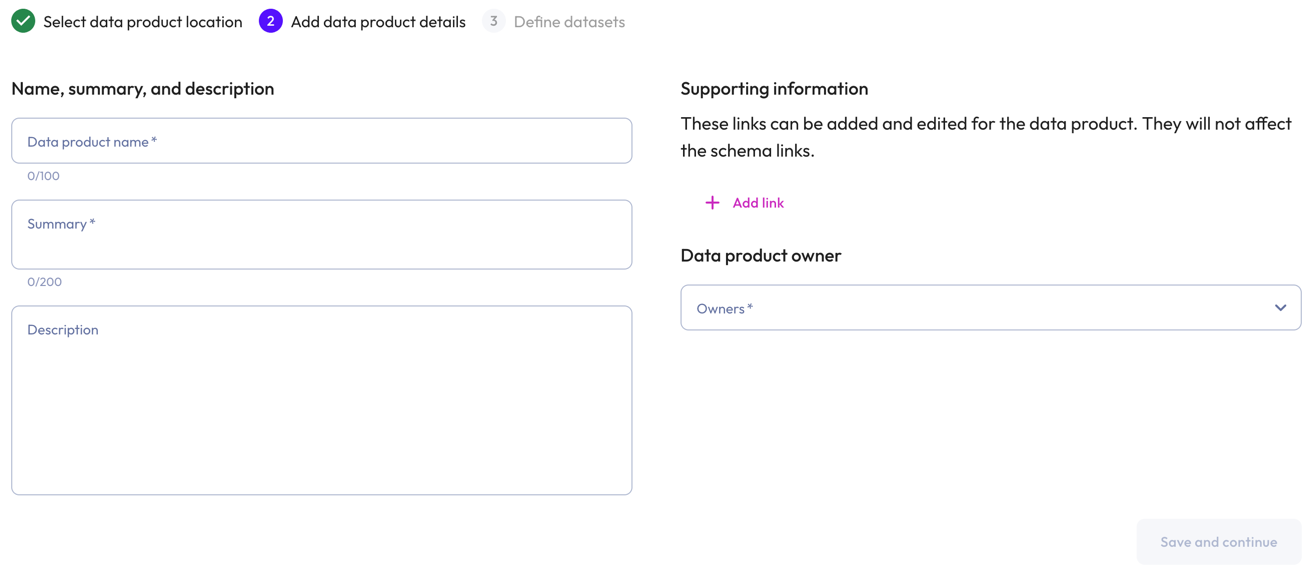
In the Add product details dialog, provide the following details:
- In the Name, summary, and description section:
- Data product name: A descriptive name for your data product.
- Summary: A concise overview of the data product.
- Description: A detailed description of your data product. The
description text field lets you provide pertinent information about the
data product, such as intended use. Click Markdown to
write your text in Markdown.
Click visibility Preview description to see the formatted
output.
-
In the Domain section, select a domain from the Domain drop-down menu.
If no other domain exists, data products are automatically added to the Default domain. You can create domains and move data products to them later, or leave the data products in the Default domain.
-
In the Contacts section, select a contact.
-
In the Business rules section, enter any rules that govern how the data product should be used. Include any requirements, restrictions, or conditions that consumers should follow when using the data product.
-
Click Save and continue.
Define datasets #
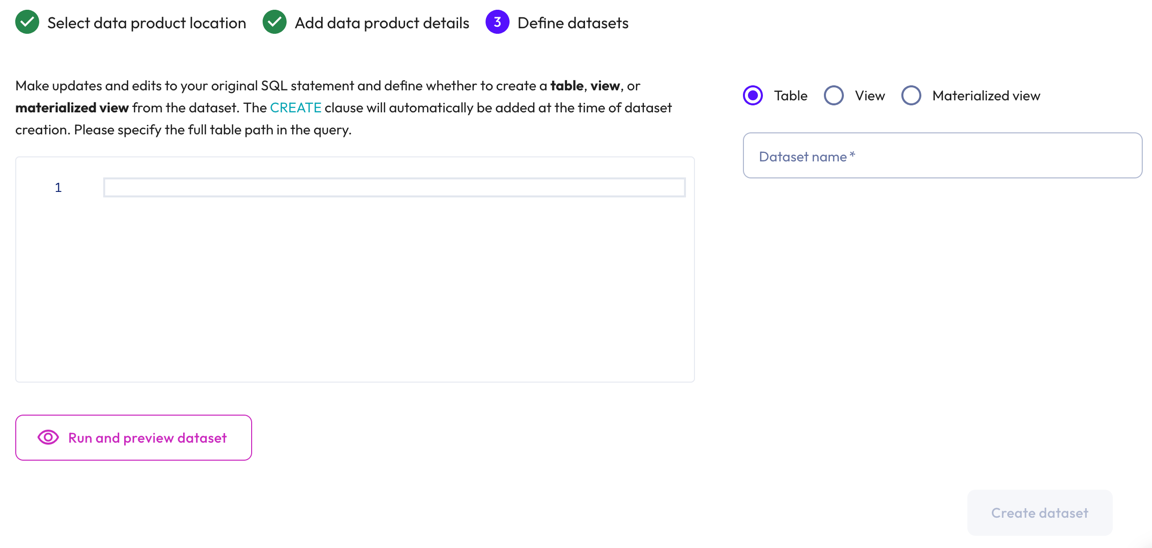
In the Define datasets dialog, perform the following actions:
-
Use the SQL editor to edit and update your original SQL statement. If you created a data product from the query editor, your SQL statement is pre-populated here.
Click visibility Run and preview dataset to apply any changes made to the SQL query and to view a 10 row sample of the dataset.
The
CREATEclause is automatically added at the time of dataset creation.Queries must specify the full table path.
-
In the Dataset type section, choose whether to create a Table, View, or Materialized view from the dataset. This section shows only the dataset types supported by the selected dataset.
If selecting Materialized View, select a Refresh type: Manual or Scheduled. The Materialized View option also requires an object store configured with Iceberg as its default table format. The view is not visible, otherwise.
-
Provide a name for the dataset, then click Create dataset.
Add to an existing data product #
In the Create data product dialog, select Add to existing data product, choose a data product from the drop-down menu, then click Next.
In the Define datasets dialog, perform the following actions:
-
In the Dataset section, you can edit and update your original SQL statement.
Click visibility Preview dataset to apply any changes made to the SQL query and to view a 10 row sample of the dataset.
The
CREATEclause is automatically added at the time of dataset creation. -
In the Dataset type section, choose whether to create a Table, View, or Materialized view from the dataset. This section shows only the dataset types supported by the selected dataset.
If selecting Materialized View, select a Refresh type: Manual or Scheduled. The Materialized View option also requires an object store configured with Iceberg as its default table format. The view is not visible, otherwise.
-
Provide a name for the dataset, then click Add to data product.
Create a data product from a schema #
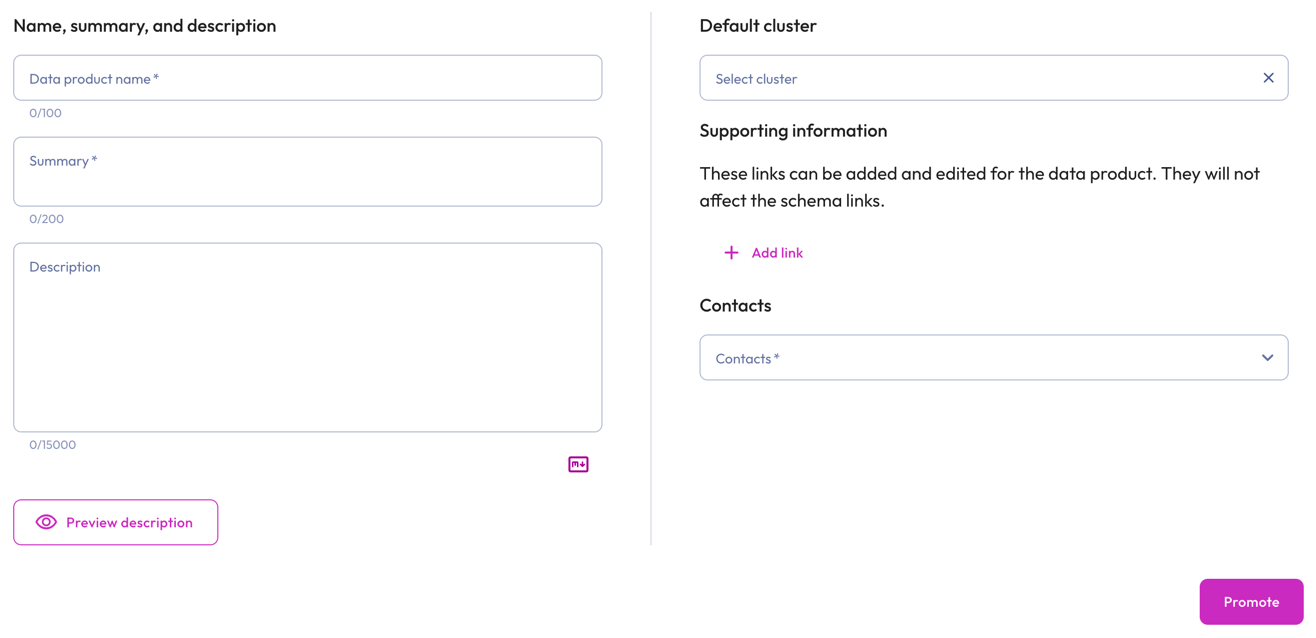
You can create a data product from an existing schema by promoting it.
To promote a schema to a data product:
-
Locate the schema you would like to promote to a data product in the schemas level of the catalog explorer.
-
Click widgets Promote to data product.
In the dialog, provide the following details:
- In the Name, summary, and description section:
- Data product name: A descriptive name for your data product.
- Summary: A concise overview of the data product.
- Description: A detailed description of your data product. The
description text field lets you provide pertinent information about the
data product, such as intended use. Click Markdown to
write your text in Markdown.
Click visibility Preview description to see the formatted
output.
-
In the Default cluster section, click inside the Select cluster field to select a cluster from the list.
- In the Supporting information section, include any web links that are
relevant to the data product. Links are imported from the schema if you chose
to import link metadata.
- To add a link, click addAdd link. In the respective fields, enter the display text for the link and the URL.
- To remove a link, click do_not_disturb_on.
.
-
In the Contacts section, select a user who can provide information or support for the data product.
-
Click Promote to finish creating your data product.
Create a data product from query results #
After running a query, you can create a data product directly from the query editor.
Click widgets Create data product in the results pane, then follow the create data product configuration process.

Create a data product from code #
Creating a data product from code lets you define its metadata in a YAML file and import it, instead of entering each field manually in the UI. Because the definition lives in a file, updating a data product is easier and faster.
Before you begin #
When drafting a YAML file for import, note the following requirements and behavior.
Required fields:
- The required top-level fields are
apiVersion: galaxy/v1andkind: DataProduct. - The required
metadatafields arename,catalogName,schemaName,dataDomainName, andsummary. - The
summarymust not exceed 200 characters.
Field mapping:
Fields in the YAML file map to the data product details as follows:
| YAML field | Data product detail |
|---|---|
businessContext |
Business rules |
sampleQueries |
Usage examples |
owners |
Contacts |
relevantLinks |
Supporting information |
Considerations:
- If you use an exported file as a template, replace the
name,catalogName, andschemaNamevalues with your own. - The catalog and domain must exist before import.
- A schema can contain only one data product.
- Datasets are inferred from the schema and are not imported from the YAML file. To add a dataset to the data product, use the query editor.
YAML file examples #
The YAML file must include the required fields to result in a successful import. See the examples in this section.
This example shows only the fields required for import:
apiVersion: galaxy/v1
kind: DataProduct
metadata:
  name: Name of data product
  catalogName: name_of_catalog
  schemaName: name_of_schema
  dataDomainName: name of domain
  summary: This is the summary of the data product.
This example shows the content of a YAML file complete with optional fields such as a description, business rules, usage examples, and supporting links:
apiVersion: galaxy/v1
kind: DataProduct
metadata:
  name: Customer 360
  catalogName: analytics
  schemaName: customer_360
  dataDomainName: Marketing
  summary: One row per customer
  description: |
    Golden customer profile, refreshed hourly.
  businessContext: |
    Source of truth for customer identity across marketing systems.
owners:
  - email: alice@example.com
  - email: bob@example.com
relevantLinks:
  - label: Runbook
    url: https://runbooks.example.com/c360
sampleQueries:
  - name: Active customers
    description: Customers active in the last 30 days
    query: |
      SELECT count(*) FROM customer_360.profiles
      WHERE last_seen >= current_date - INTERVAL '30' DAY
    suggestedPrompt: How many customers were active this month?
datasets:
  views:
    - name: active_customers
      description: Customers seen in the last 30 days
      viewSecurityMode: DEFINER
      definitionQuery: |
        SELECT customer_id, last_seen
        FROM profiles
        WHERE last_seen >= current_date - INTERVAL '30' DAY
      columns:
        - name: customer_id
          type: bigint
          description: Stable customer key
        - name: last_seen
          type: timestamp(3) with time zone
  materializedViews:
    - name: daily_rollup
      definitionQuery: |
        SELECT date_trunc('day', last_seen) AS day, count(*) AS customers
        FROM profiles
        GROUP BY 1
      definitionProperties:
        refresh_interval: 1h
      columns:
        - name: day
          type: date
        - name: customers
          type: bigint
  tables:
    - name: profiles
      description: Golden profile table
      definitionProperties:
        format: PARQUET
      columns:
        - name: customer_id
          type: bigint
          description: Stable customer key
        - name: last_seen
          type: timestamp(3) with time zone
          description: Most recent activity
      tags:
        - pii
        - gold
Import a data product #
Import a YAML template to create a new data product or overwrite an existing one:
- Click Import Data Product.
- Drag your YAML file into the upload area or click to browse.
- Enable Overwrite existing data product of the same name when you import a
revised YAML file. This action replaces the data product with the same
namein the file’s metadata. - Click Import to view your data product.
A successful import with flagged behaviors displays a dialog. These behaviors may include omitted datasets or contacts that do not exist in the assigned role. In that case, you must click Go to data product to view your data product.
Export a data product #
Export a data product to download its definition as a YAML file:
- Click themore_vert options menu of the data product.
- Select Download YAML.
- In the dialog, uncheck Include datasets to exclude datasets.
- Click Download YAML.
Is the information on this page helpful?
Yes
No