
Icehouse LakeOps #
Starburst Galaxy’s Icehouse LakeOps service performs automatic table maintenance tasks on registered catalogs.
Icehouse LakeOps runs automatic table maintenance at regular intervals and executes the following optimization tasks when needed:
| Maintenance Task | Description |
|---|---|
| Snapshot expiration | Reduces storage by deleting older data snapshots. This action runs daily and expires snapshots older than 30 days. |
| Compaction | Improves performance by optimizing your data file size. This action runs hourly. |
| Rewrite manifest files | Reorganizes data file references to improve query performance and efficiency. This action runs daily. |
| Orphan file removal | Reduces storage by deleting files that are no longer linked to active data. This action runs daily. |
Getting started #
Icehouse LakeOps is only available to users assigned to roles that have the Manage Icehouse Ops account-level privilege.
Icehouse LakeOps requires exclusive access to registered tables. Any third-party table maintenance services or operations must be fully disabled prior to using LakeOps.
Automatic table maintenance only supports data stored in Parquet format.
Register a catalog #
To register a catalog for managed maintenance, select Managed Icehouse > LakeOps from the Starburst Galaxy navigation menu.
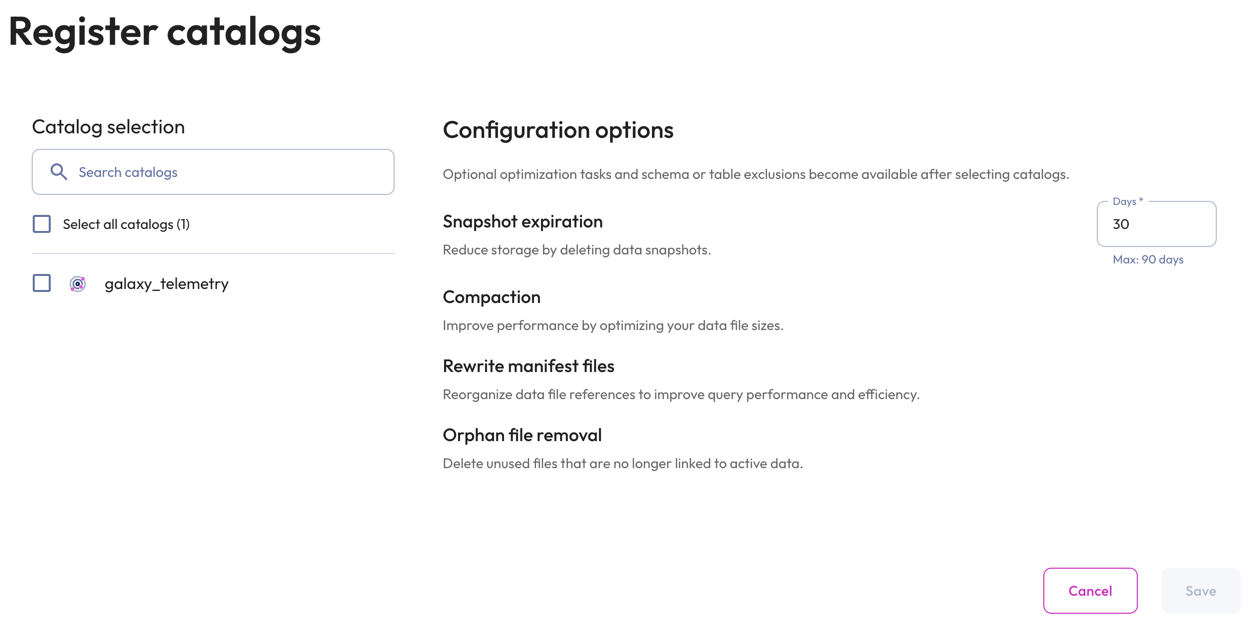
On the LakeOps pane, click Register a catalog to open the Register catalogs dialog.
In the Catalog selection:
- Select a single catalog from the list of eligible catalogs or select all catalogs by checking the Select all catalogs box.
- Use the Search field to find catalogs by name.
In the Configuration options section:
- Specify a threshold between 1 and 90 days for retaining snapshots from the Days drop-down menu.
- To exclude any schemas or tables from managed maintenance, hover near the
catalog of interest in the Catalog selection section, and click the edit icon to expose
Schema/table exclusion options.
- Expand the section and select schemas to exclude. To exclude tables, expand the schema to expose its tables.
- Click Select all to select all schemas and their tables. Deselect all unchecks all boxes and allows for individual schema and table selection. The top of this section shows how many schemas and tables are included and/or excluded.
- Use the Search field to find schemas and tables by name.
- Click Save.
View registered resources #
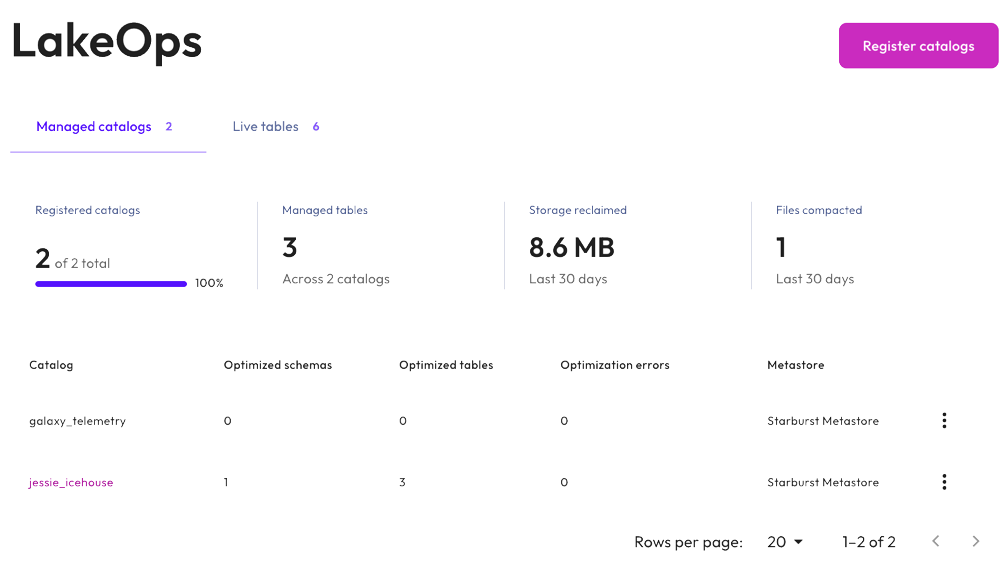
The LakeOps pane includes a Register catalogs button and tabs for viewing Managed catalogs and Live tables.
Shared elements in LakeOps #
The Search field lets you filter lists based on your search criteria.
Filters display the number of managed resources in each category and the number of errors detected during maintenance runs. Use the filters to view All resources or resources by category, including Registered, Unregistered, and Errors.
Managed catalogs #
The Managed catalogs tab lists all catalogs registered for managed maintenance. From here, you can navigate through the levels:
- Top: shows a list of registered catalogs.
- Catalog: shows the registered catalog’s schemas.
- Schema: shows the registered schema’s tables.
- Table: shows optimization details about the selected table.
Refer to the navigation breadcrumbs at the top of each pane to see which level you are on.
Top-level details #
The top level displays a maintenance summary for your registered catalogs.
The header section provides a Register catalogs button and the following details:
- Registered catalogs: the total number of registered catalogs in your Galaxy account and what percentage of those catalogs are registered.
- Managed tables: the number of tables in the registered catalogs.
- Storage reclaimed: the amount of storage recovered in the last 30 days as a result of maintenance operations like orphan file removal.
- Files compacted: the number of files that were compacted during the maintenance run in the past 30 days.
This level also shows a list of registered catalogs with details organized in the following columns:
- Catalog: the name of the registered catalog. Click the name to see catalog-level details.
- Optimized schemas: the number of schemas included in the maintenance run.
- Optimized tables: the number of tables included in the maintenance run.
- Optimization errors: the number of errors discovered during maintenance runs.
- Metastore: the metastore used by the registered catalog.
- Use themore_vertoptions menu to manage registered catalogs.
Catalog-level details #
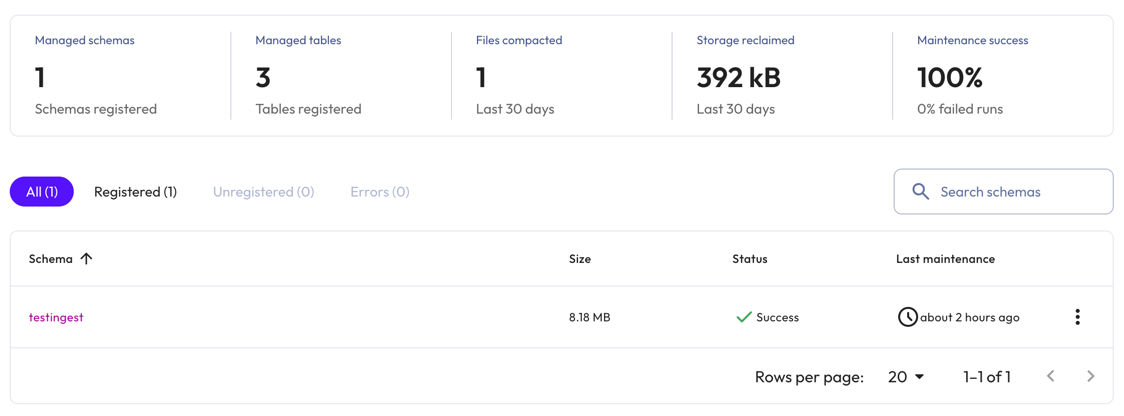
The catalog level displays a maintenance summary for your registered schemas.
The header section shows the following details:
- Managed schemas: the number of schemas registered for managed maintenance.
- Managed tables: the number of tables registered for managed maintenance.
- Files compacted: the number of files that were compacted during maintenance runs in the past 30 days.
- Storage reclaimed: the amount of storage recovered in the last 30 days as a result of maintenance operations like orphan file removal.
- Maintenance success: the percentage of successful and failed maintenance runs.
This level also shows a list of registered schemas with details organized in the following columns:
- Schema: the name of the schema. Click the name to see schema-level details.
- Size: the amount of data being optimized.
- Status: the status of the maintenance run:
- refresh Initializing
- check Success
- error Failed. For failed jobs, the Debug link opens a window with information about the failed task.
- Last maintenance: the approximate time since the last maintenance run.
-
Use themore_vertoptions menu to manage registered schemas.
Schema-level details #
The schema level displays a maintenance summary for your registered tables.
The header section displays the following details:
- Managed tables: the number of tables registered for managed maintenance.
- Files compacted: the number of files that were compacted during maintenance runs in the past 30 days.
- Storage reclaimed: the amount of storage recovered in the last 30 days as a result of maintenance operations like orphan file removal.
- Maintenance success: the percentage of successful runs and failed runs.
This level also shows a list of registered tables with details organized in the following columns:
- Table: the name of the table. Click the table name to see table-level details.
- Size: the size of the data being processed.
- Status: the status of the maintenance run:
- refresh Initializing
- check Success
- error Failed
- Last maintenance: the approximate time since the last maintenance run.
-
Use themore_vertoptions menu to manage registered tables.
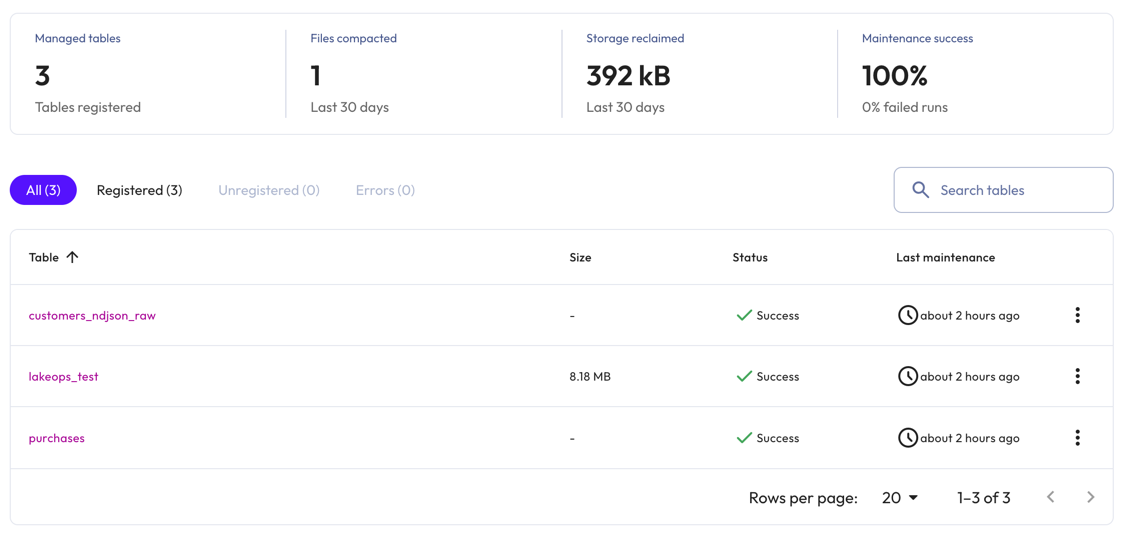
Table-level details #
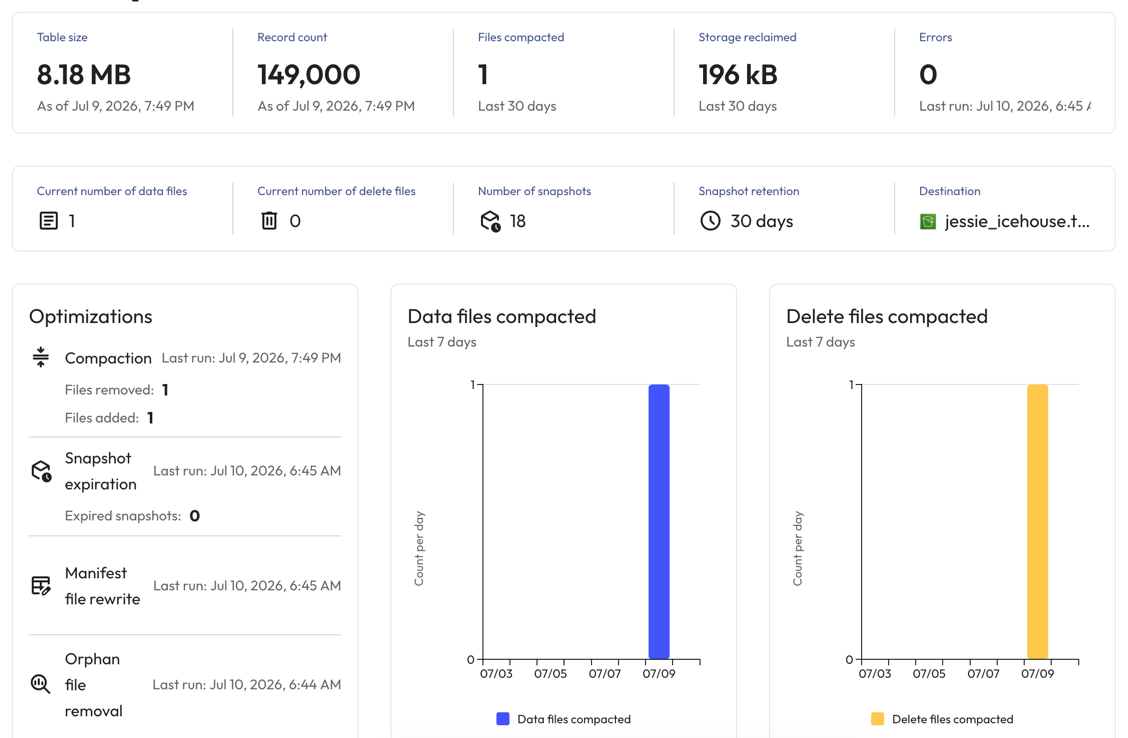
The table level displays a maintenance summary and key metrics for the selected table.
Table stats and data volume details include the Table size and Record count according to the timestamp, the number of Files compacted and the amount of Storage reclaimed in the last 30 days, and any Errors discovered during the last maintenance run.
Table history and storage details include the Current number of data files, the Current number of delete files, the Number of snapshots, the Snapshot retention threshold, and the location of the table in Destination.
The Optimization pane displays the following maintenance task details:
- Compaction: the timestamp indicates when the last compaction task was executed and how many files were removed and/or added during the maintenance run.
- Snapshot expiration: the timestamp indicates when the last snapshot expiration task was executed and how many snapshots expired.
- Manifest file rewrite: the timestamp indicates when the manifest file was rewritten.
- Orphan file removal: the timestamp indicates when the last orphan file removal task was executed.
Table metrics are also shown in the following charts:
- Data files compacted: shows how many data files were compacted daily over the past seven days.
- Delete files compacted: shows how many delete files were compacted daily over the past seven days.
- Snapshot history: shows how many snapshots were created and how many snapshots expired per day over the past seven days.
- Table size: shows the size of the table.
- File composition: shows the total number of data files and delete files.
Live tables #
The Live tables tab displays all live tables registered for managed maintenance with details organized in the following columns:
- Table: the name of the table.
- Table size: the size of the table.
- Record count: the number of records in the table.
- Files compacted: the number of files that were compacted during the maintenance run in the past 30 days.
- Storage reclaimed: the amount of storage recovered as a result of maintenance operations like orphan file removal.
- Status: the status of the maintenance run:
- refresh Initializing
- check Success
- error Failed
Manage registered resources #
Live tables cannot be unregistered. Unregistering a catalog or schema, or unmanaged (non-live) table from managed maintenance automatically stops maintenance operations for the selected resource. Previously completed maintenance operations are not reverted.
To remove a catalog, schema, or unmanaged table from managed maintenance:
- Go to the Managed catalog tab, and locate the resource in the catalog, schema, or table list.
- Click themore_vertoptions menu at the end of the row, then select Unregister {managed resource}.
- In the dialog, click delete Yes, unregister.
To re-register a schema or unmanaged table:
- Go to the Managed catalog tab, and locate the resource in the schema or table list.
- Click themore_vertoptions menu at the end of the row, then select Register {managed resource}.
- In the dialog, click addYes, register.
To re-register a catalog, follow the instructions for registering a catalog.
Is the information on this page helpful?
Yes
No