
AI Data Assistant (AIDA) #
Starburst’s AI Data Assistant (AIDA) is a conversational analytics assistant. AIDA accepts natural language queries and translates them into SQL, then executes those queries against the data sources configured in your Starburst Galaxy account. AIDA returns results in formats that best suit your query, such as summaries, observations, or grids.
AIDA lets you perform data analysis using natural language. It is designed for business users and decision-makers who want answers from their data without writing SQL, and analysts and data engineers who want to explore data quickly.
Requirements #
To use AIDA, you need:
- Existing data products (curated datasets) that you want to analyze. Consider enriching your data products to improve answers from AIDA. More detailed metadata improves the quality of AIDA’s responses.
- A role with privileges to access a cluster and query the underlying schema of the data product/datasets that you want to analyze.
- A license that includes AIDA. If you cannot access AIDA in your Galaxy account, contact Starburst support.
How AIDA works #
AIDA uses a large language model (LLM) to interpret your question, with the data product you select as context. When you ask AIDA a question, it:
- Generates and executes SQL. Before producing a final answer, AIDA may
return exploratory queries (such as sampling rows with a
LIMITclause) to understand the data, observe the results, and refine its approach. AIDA repeats this pattern as needed, then generates the final query against the data specified in your data product. Depending on the complexity of your question, AIDA might show you the generated SQL for review before running it. - Returns an answer. AIDA executes queries against live data and presents results in a readable format (for example, a summary or data grid). Depending on the persona you select, AIDA might return executive or technical summaries, key observations, implementation warnings, or recommended next steps. Responses reflect the current state of your data. AIDA does not cache results.
AIDA uses a chat-style interface that supports follow-up questions, query refinements, and requests for AIDA to explain its reasoning or the SQL it generated. This lets you explore data iteratively, without requiring you to restart the session.
AIDA only queries the datasets exposed by the data product you select. The data product provides the context AIDA needs to generate accurate queries. To analyze data from a different source, switch to a data product that includes it.
Personas #
AIDA supports three built-in personas: executive, analyst, and data engineer. Each persona tailors its responses and level of detail to suit different user roles. You can also create custom personas to fit additional audiences. See Custom personas.
To view the specific prompt used for each built-in persona, click the more_vert options menu next to the Persona menu, and select rule View persona prompt.
The following sections describe the built-in personas.
Executive #
Provides high-level summaries tailored to executives and decision-makers.
- Focuses on business insights and trends.
- Omits technical detail unless explicitly requested.
- Presents concise bullet points for quick understanding.
Analyst #
Offers detailed analytical summaries suitable for analysts and data scientists.
- Includes statistical analysis and relationships in the data.
- Adds contextual information and potential implications.
- May include suggestions for further exploration.
Data engineer #
Provides technical summaries tailored to engineers.
- Focuses on structure, data quality, and metadata.
- Includes schema details, cardinality, and patterns.
- Highlights potential data issues or anomalies.
Accessing AIDA #
You can access AIDA in multiple ways.
-
A standalone version of AIDA is always accessible from the role selection menu:
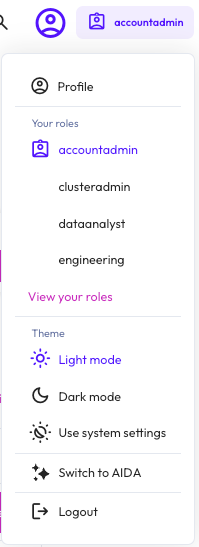
-
You can also access the standalone version of AIDA through a URL. Append
/agentto your fully qualified Galaxy domain. For example:
https://domain.galaxy.starburst.io/agent
-
AIDA is also embedded within Galaxy. From the Galaxy navigation menu, click AI > AIDA.
-
Additionally, you can access AIDA directly from a data product:
- In the Galaxy navigation menu, click Data > Data products.
- Select an existing data product.
- Click the
 Ask AIDA icon next to the Enrich with AI button.
Using AIDA #
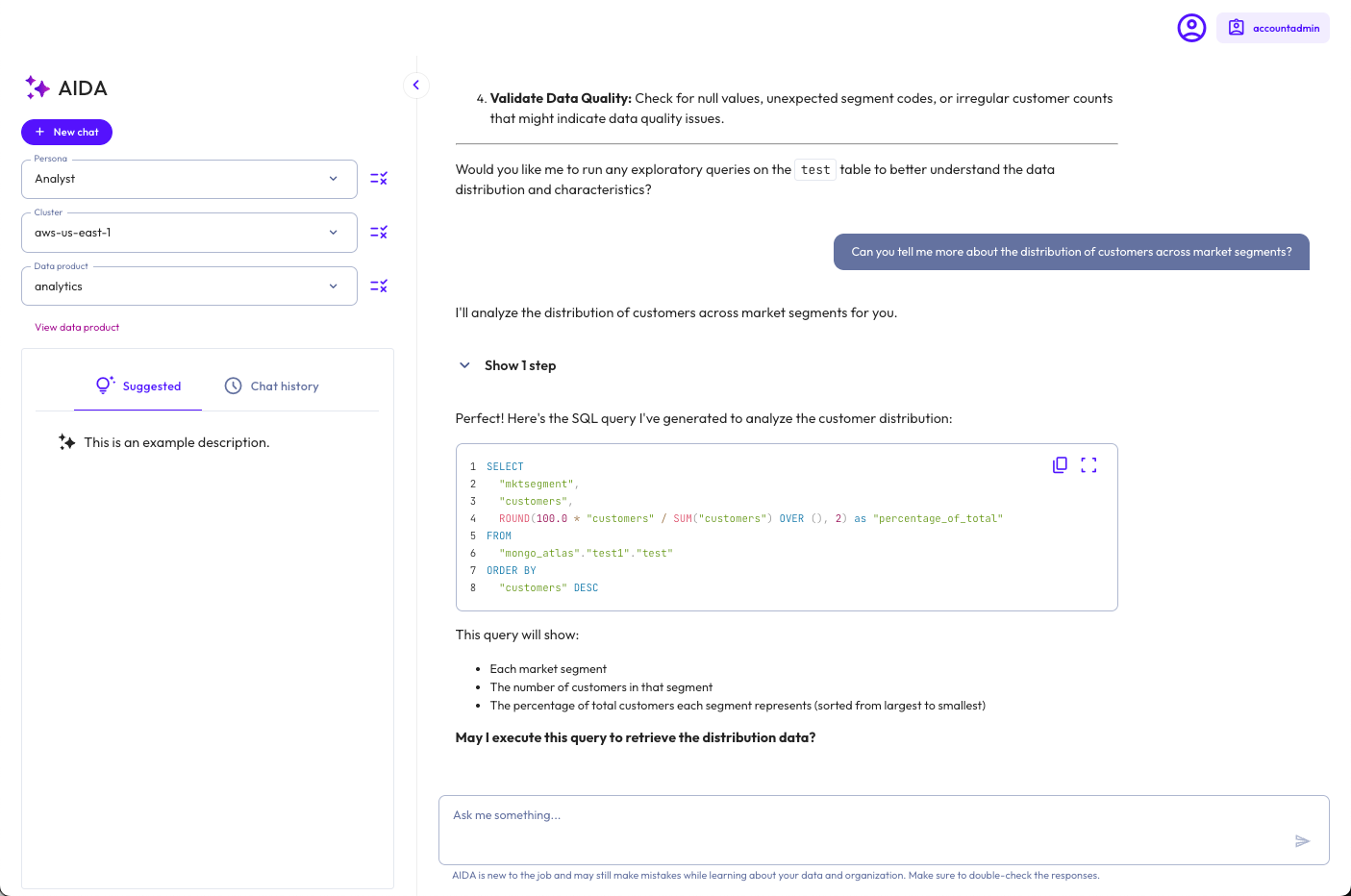
- In the AIDA UI, select a persona from the Persona menu to control the format and detail level of AIDA’s responses. To review the prompt used for the selected persona, click the more_vert options menu next to the Persona menu, and select View persona prompt. To create, clone or edit all personas for you account, select Manage personas. For more information, see Custom personas.
- From the Cluster menu, select a cluster. Click the rule icon next to the Cluster menu to see the cluster details.
- From the Data product menu, select the data product that you want to analyze. Click the View data product link to see the data product’s datasets, overview, or usage examples.
- Enter a question or prompt for AIDA in the text box. For example, you can:
- Query specific metrics or trends (“What are our top-selling products?” or “Show me revenue by region”).
- Explore available data (“What tables do we have?” or “What customer data is available?”).
- Run specific analyses or create reports.
- Press Enter or click the send submit button. Double-check all AIDA responses.
Suggested prompts #
AIDA can suggest prompts for you to run. These prompts come from the Description field in any usage examples created for the data product. Click the tips_and_updates Suggestions tab.
Chat history #
Use schedule Chat history to review past AIDA conversations, including the persona active during each session. Chat history shows the steps that AIDA performed, including any tool calls and SQL queries executed during the conversation. AIDA deletes chat sessions after 90 days.
AIDA chat sessions belong to a specific user, not a role. Only the user who initiated the chat session can view its history. The exception is users assigned a role with the Manage Security privilege, who can view all AIDA chat sessions across all users.
Manage chats #
Each conversation appears in the schedule Chat history.
-
To pin a chat, hover over it and click the push_pin pin icon. Pinned chats appear at the top of your history list, sorted by most recent activity. Click the icon again to unpin. For more information, see Pinned chats.
-
To rename a chat, hover over it and click the more_vert options menu, then select Rename.
-
To delete a chat, hover over it and click more_vert options menu, then select Delete.
-
Use the search search bar to find previous chats by name.
The following table describes the icons used in the AIDA chat dialog:
| Icon | Description |
|---|---|
| content_copy | Copy the response to the clipboard. |
| download_2 | Download the response. |
| send | Submit a question. |
| stop_circle | Cancel the in-progress response. |
| more_vert | Open the options menu. |
| add | Start a new chat. |
| search | Search chats. |
| push_pin | Pin a chat. |
| edit | Rename a chat. |
| delete | Delete a chat. |
Pinned chats #
Pinned chats appear at the top of your chat history. Pin a chat to keep important or ongoing chat sessions easily accessible.
To pin or unpin a session:
-
Navigate to the scheduleChat history tab, hover over the chat you want to pin, and click the push_pin pin icon.
-
Click the push_pin pin icon again to unpin.
Pinned chats appear above unpinned chats in the chat history. Chats within each group are sorted by most recent activity. When you resume a pinned chat and send a message, it moves to the top of the pinned group.
Deleting a chat session also removes its pin.
Visualizations #
AIDA can render interactive charts within your chat session, in response to query results. Charts can make it easier to see trends over time, rankings, comparisons across categories, or distributions.
Click the Ask button on a chart to ask a follow-up question about the
entire chart, or click a data point and select Ask about this to ask about a
specific value.
Use visualizations to:
- Spot trends, outliers, and distributions at a glance.
- Compare values across categories, time periods, or segments.
- Dive deeper into a specific data point by clicking a chart element and asking a follow-up question.
- Iterate on a result without re-running the query, such as switching chart types or reframing the same data in a follow-up prompt.
AIDA determines when to render a chart based on the content of your query
results. Aggregated data, time series, rankings, comparisons, and distributions
typically produce a chart. Exploratory queries, count checks, and single-value
results do not. You can also explicitly request a chart in your prompt, for
example by asking AIDA to chart, plot, or show the results.
If AIDA cannot generate a chart for the requested data, it displays the results as a data table.
Best practices #
- Describe what you want to see. Prompts that include phrases like
trend over time,top 10,share of total, orcompare by regiontend to produce better charts than vague prompts. - Ask for a specific chart type when you have one in mind. For example, “Show revenue by region as a bar chart”. If the chart type is not a good fit for the data, AIDA explains why and recommends an alternative.
- Refer to earlier results in follow-up prompts to iterate without re-running the query. For example, “Change that to a pie chart” or “Plot the data you retrieved earlier”.
Limitations #
- AIDA generates one chart per response, rendered after the final query that answers your question.
- SQL result sets larger than 500 rows are truncated before AIDA generates a chart. To visualize a larger dataset, refine your query to aggregate, filter, or rank the results.
- If AIDA cannot produce a valid chart after three attempts, it returns a data table containing the same results.
- Visualizations reflect the data returned at query time. AIDA does not cache or refresh chart data automatically
Custom personas #
In addition to the three built-in personas, you can create custom personas that tailor how AIDA communicates with a specific audience. Each custom persona consists of a name, description, and a persona prompt that defines AIDA’s tone, terminology, detail level, and output structure for that audience.
Custom personas appear in the Persona menu alongside the built-in personas and are available to all users in your Galaxy account.
MANAGE_SECURITY privilege. See Account level
privileges
for more information.Create a custom persona #
You can create a custom persona from a number of places in the AIDA UI: the Persona menu or the Manage personas dialog. Both places let you create a new persona or clone an existing one. You can clone both built-in personas and existing custom personas.
- From the Persona menu:
- Click addCreate custom persona.
- In the Create custom persona dialog, select one of the following:
- Create new custom persona: Starts with an empty form.
- Clone existing persona: Starts with a form prepopulated from an existing persona. When selected, a Persona dropdown appears. Select any built-in or existing custom persona to use as the starting point.
- Click Next.
- From the Manage personas dialog:
- Click the more_vert options icon next to the Persona menu, and select Manage personas.
- Do one of the following:
- Click Create custom persona to create a new persona.
- Click the more_vert options menu of the desired persona, and select Clone to clone an existing persona.
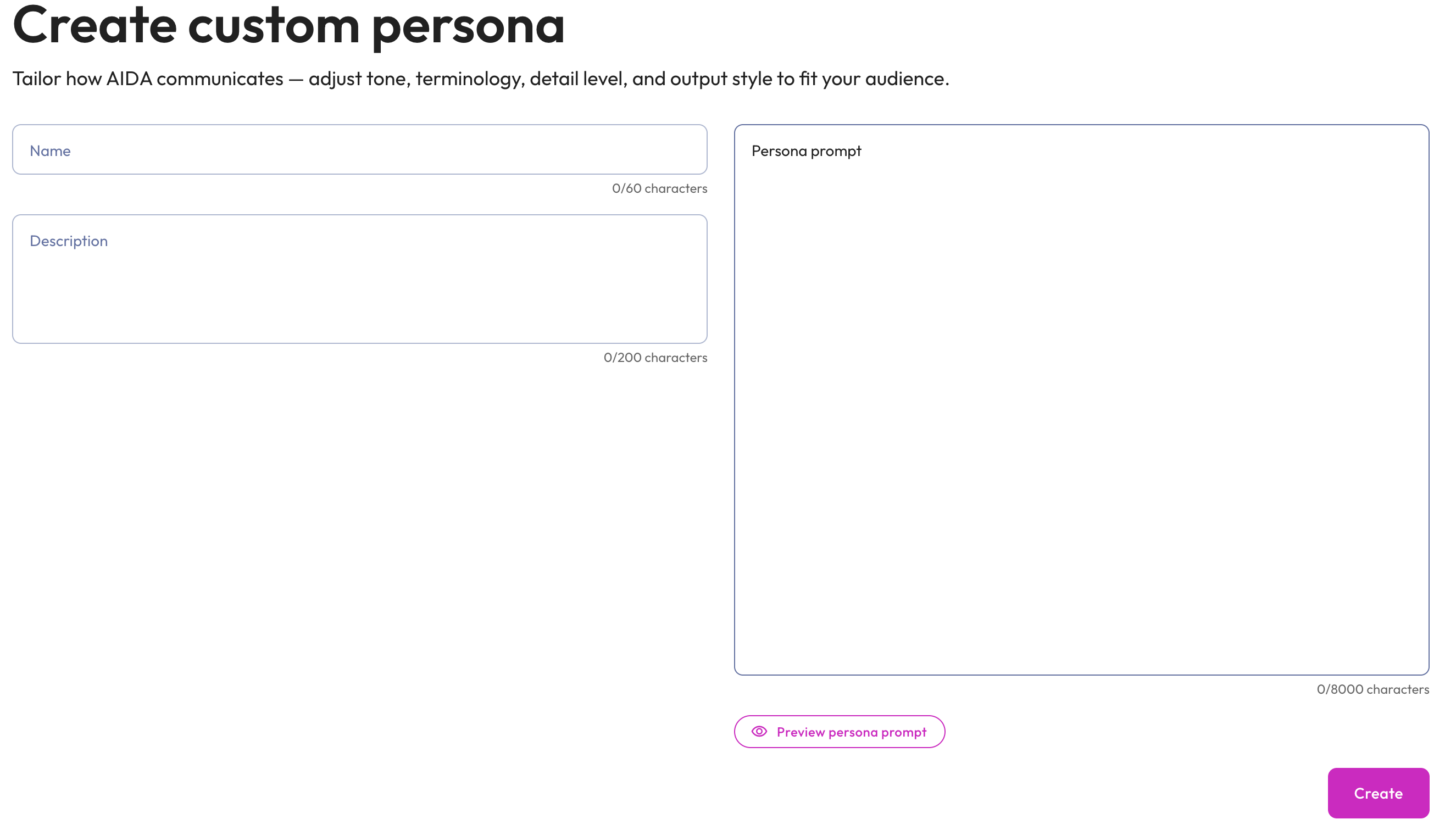
- Enter the following details in the Create custom persona dialog form:
- Name for the persona. This name appears in the Persona menu. The name must be unique.The maximum length is 60 characters.
- Description: The description appears under the persona name in the Persona menu and in the Manage personas dialog. Use it to summarize the persona’s audience and purpose. The maximum length is 200 characters.
- Persona prompt: The prompt defines how AIDA writes its responses when this persona is selected. Specify the audience, tone, terminology, and any desired output structure. The maximum length is 8,000 characters.
- Optionally, click Preview persona prompt to view the full prompt.
- Click Create. The new persona is listed in the Persona menu and can
be viewed in the Manage personas dialog.
Manage personas #
The Manage personas dialog lists all personas available in your account, both built-in and custom, along with their descriptions. To open the dialog, click the more_vert options icon next to the Persona menu, and select Manage personas.
In the Manage personas dialog, you can:
- View prompt: Click View prompt of the desired persona to see the full persona prompt.
- Edit: Click the more_vert options menu of the desired persona to open the Edit persona dialog, where you can update the name, description, and persona prompt. Click Save to apply your changes. This is available for custom personas only.
- Clone: Click the more_vert options menu of the desired persona and select Clone to create a new custom persona prepopulated with the selected persona’s name, description, and prompt. See Create a custom persona. This is available for all personas.
- Delete: Click the more_vert
options menu of the desired persona to open the Delete persona? dialog.
Type
DELETEto enable the Yes, delete button, then click Yes, delete to permanently remove the persona from your account. This action cannot be undone. Any active chat sessions that use the deleted persona will fail to generate new replies until a different persona is assigned. This is available for custom personas only. - Search: Use the Search personas field to filter the list by name.
- Create custom persona: Click Create custom persona to open the Create custom persona dialog. See Create a custom persona.
Guardrails #
AIDA’s behavior is governed by account-wide guardrails. Depending on how an administrator configures them, AIDA might decline a request, ignore an instruction embedded in your data, or reject a message that is too long. When this happens, AIDA returns a short message explaining that it cannot help, and the chat session continues.
Audit log #
Interactions with AIDA are recorded in an immutable audit log for governance and compliance. Agent logs let data administrators review interactions with AIDA. Each record captures a single agent interaction, including the user who initiated it, the question asked, the response returned, and the data sources referenced.
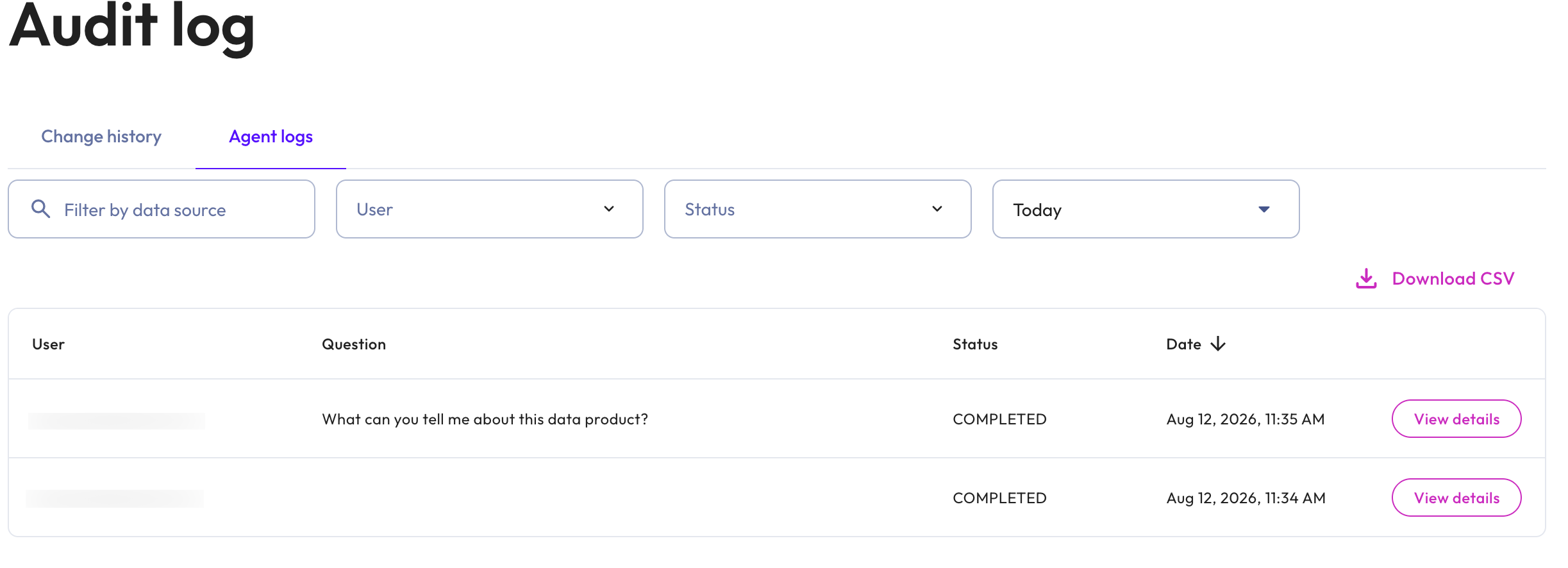
Your role must have the View audit log privilege to review and export these records from the Agent logs tab of the Admin > Audit log pane.
Agent logs records #
Each record in the Agent logs tab includes the following columns:
- User: The user who initiated the interaction.
- Question: The natural language prompt submitted to AIDA.
- Status: The outcome of the interaction. Possible values are
PENDING_APPROVAL,COMPLETED,CANCELLED,ERRORED,DECLINED, andMAX_ITERATIONS_REACHED. - Date: The date and time of the interaction. Click the Date column header to sort ascending or descending.
Click View details on any record to open the Interaction details dialog, which shows:
- Persona: The persona active for the interaction.
- Model/Cluster: The AI model used to generate the response.
- Data product: The data product used as context for the question.
- Input tokens and Output tokens: The token counts for the interaction.
- Response time: The duration it took AIDA to return the response.
- Question: The full natural language prompt submitted to AIDA. Longer prompts are shortened in the table.
- AIDA response: The response returned by AIDA, including the tools the agent used, an expandable view of the steps it performed, and the rendered answer.
- Skills used: Skills invoked by AIDA during the interaction.
- Feedback: Any feedback the user has submitted about the interaction.
Filter the agent logs #
Use the date range drop-down menu to filter results to a preset range of Today, Yesterday, Last 7 days, Last 30 days, or select Custom range to specify your own start and end dates. Click the filter_alt filter icon to filter records by:
- Data source: The data product used as context for the interaction.
- User: The user who initiated the interaction.
- Status: The outcome of the interaction. Possible values are
PENDING_APPROVAL,COMPLETED,CANCELLED,ERRORED,DECLINED, andMAX_ITERATIONS_REACHED.
The date range filter is always applied and cannot be removed. Click Apply filters to update the results, or Reset filters to return to the default view.
Download the agent logs #
Download the agent logs as a comma-separated values (.csv) file that contains
all of its records for unfiltered data, or only for the filtered results if
filters were applied.
Click Download CSV in the Galaxy Audit log pane Agent logs tab.
Example downloaded output:
session_id,message_id,user_id,question,response,data_sources,skills,status,error_message,started_at,updated_at
1515-1234,2,alice,Which months carry the largest renewal ACV?,"I'll use the following tool(s): natural_language_analytics

```json
{
  ""question"" : ""Which months have the highest renewal ACV?""
}```

...
Is the information on this page helpful?
Yes
No